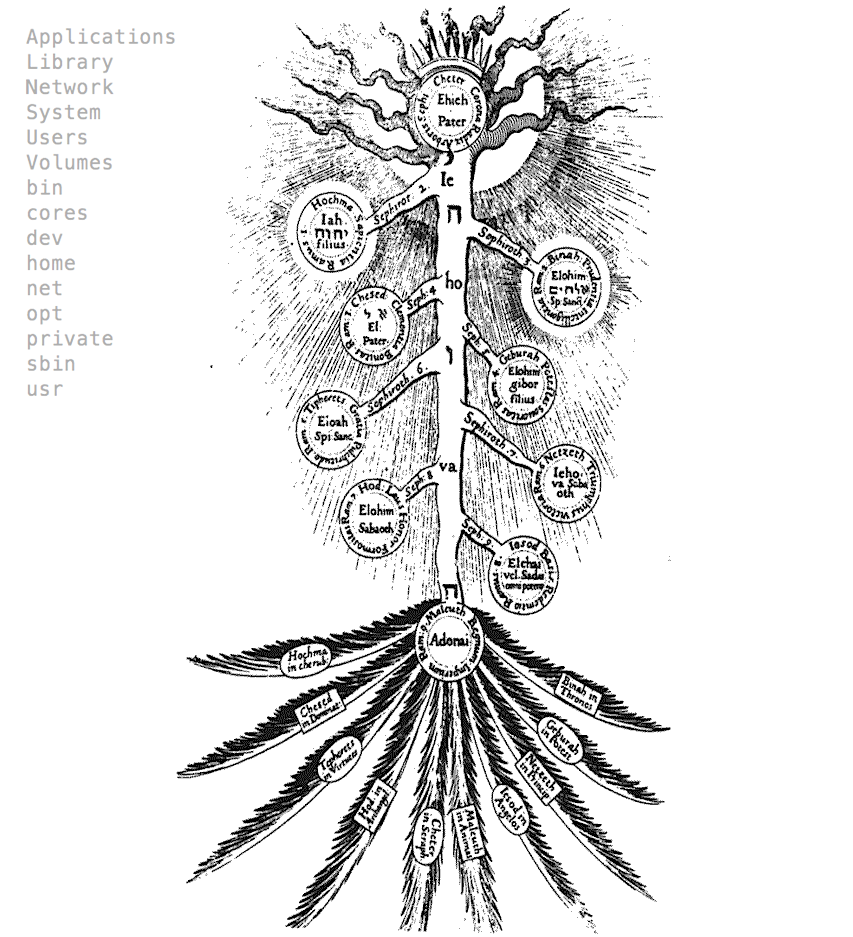
Like the Yggdrasil for the old Norse the folder structure holds the UNIX system like the spine giving strong old in an elegant, flexible and organized way.
From the mind on the '/etc', entrails of the '/usr' passing throughout the hear of the '/boot'. Every folder have a porpoise and a owner.
Let's start by understanding witch are there for:
/ This is the root directory which should contain only the directories needed at the top level of the file structure.
/bin This is where the executable files are located. They are available to all user.
/dev These are device drivers.
/etc Supervisor directory commands, configuration files, disk configuration files, valid user lists, groups, ethernet, hosts, where to send critical messages.
/lib Contains shared library files and sometimes other kernel-related files. (Similar to /Libraries on MacOS)
/boot Contains files for booting the system.
/home Contains the home directory for users and other accounts. (/Users on MacOS)
/mnt Used to mount other temporary file systems, such as cdrom and floppy for the CD-ROM drive and floppy diskette drive, respectively (/Volumes on MacOS)
/proc Contains all processes marked as a file by process number or other information that is dynamic to the system.
/tmp Holds temporary files used between system boots
/var Typically contains variable-length files such as log and print files and any other type of file that may contain a variable amount of data
/sbin Contains binary (executable) files, usually for system administration. For example fdisk and ifconfig utlities.
/usr Used for miscellaneous purposes, or can be used by many users. Includes administrative commands, shared files, library files, and others. You can see how the structure repeats it self inside this folder following the previous logic.
/usr/bin This is where the users executable files are located
/usr/etc Configuration files for users applications
/usr/include Store all the header. Unix really designed as a SDK
/usr/lib Contains shared users library files
/usr/local Here you will found another tree structure holding the programs you compile
/usr/share Hold media files of your user applications
/usr/sbin Configuration files for users system applications
Like the places on a castle, each room haves it owner and it duties. By thinking on the porpoise and scope of what you are looking for, you can know where you can found it. Also, this rooms have some general qualities. Each one have to extra "doors" besides those to the containing rooms.
. A reference to that directory himself
.. A reference to the lower level directory
Finally there hidden doors to folders and files. Those how start with a dot ('.') are hard to be seen by the user.
More resources here
Now that we know the extensions and branches of this house tree we can explore it with some of the following commands.
ls [DIRNAME] Shows the contents of the directory specified.
pwd Shows the current directory the user is in.
cd DIRNAME Moves you to the directory identified.
mkdir DIRNAME Creates the specified directory.
rmdir DIRNAME Removes a directory.
cp FILE1 FILE2 Copies one file/directory to specified location.
mv FILE1 FILE2 Moves the location of or renames a file/directory.
rm FILE Removes a file.
Like we said before each room have a owner. It's the same for each element or file you found in it. There are three types of lords ("users"):
Root: This is also called superuser and would have complete and unfettered control of the system. A superuser can run any commands without any restriction. This user should be assumed as a system administrator.
System: System accounts are those needed for the operation of system-specific components for example mail accounts and the sshd accounts. These accounts are usually needed for some specific function on your system, and any modifications to them could adversely affect the system.
User: User accounts provide interactive access to the system for users and groups of users. General users are typically assigned to these accounts and usually have limited access to critical system files and directories.
This three types of lords have it's own Group account, that we can picture like a family. Each owner can set privileges for them only and others for the people they trust and love. In other worlds Unix supports a concept of Group Account which logically groups a number of accounts. Every account would be a part of any group account. Unix groups plays important role in handling file permissions and process management.
So, for any file in the system, user 'Thor' may have one of the following ownership relations:
At the same time, every file on the system has associated with it a set of permissions. Permissions tell the system what can be done with that file and by whom. Like spells to objects, the owner can tell how can be read it, writed it or used it. In other words:
This permissions specify which of the above operations can be performed for any ownership relation with respect to the file.
In simpler terms, what can the owner do, what can the owner group do, and what can everybody else do with the file.
For any given ownership relation, we need three bits to specify access permissions: the first to denote read r access, the second to denote w access and the third to denote execute x access. We have three ownership relations: owner, group and all so we need a triplet for each, resulting in nine bits. Each bit can be set or clear. We mark a set bit by it's corresponding operation letter (r, w or x) and a clear bit by a dash - and put them all on a row.
An example might be rwxr-xr-x. What this means is that the owner can do anything with the file, but group owners and the rest of the world can only read or execute it. Usually in UNIX there is also another bit that precedes this 9-bit pattern. You do not need to know about it, at least for the time being.
So if you try ls -l on the command prompt you will get something like the following:
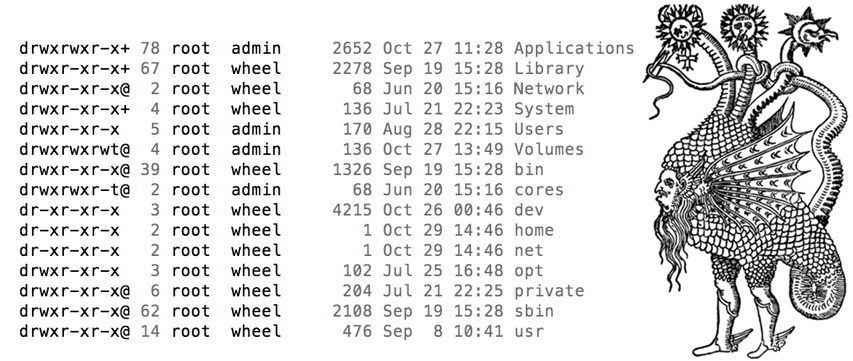
The first column here shows the permission bit pattern for each file. The third column shows the owner, and the fourth column shows the owner group. By the time, the information provided by ls -l should be enough for you to figure out what each user of the system can do with any of the files in the directory.
Another interesting thing to note is that Library/ which is a directory has permissions, too. Permissions take a different meaning for directories. Here's what they mean:
read determines if a user can view the directory's contents, i.e. do ls it.
write determines if a user can create new files or delete file in the directory. (Note here that this essentially means that a user with write access to a directory can delete files in the directory even if he/she doesn't have write permissions for the file! So be careful withis.)
execute determines if the user can cd into the directory.
There are three main user administration files, that as you can imagine are located central head quarters of the /etc folder.
/etc/passwd Keeps user account and password information. This file holds the majority of information about accounts on the Unix system.
/etc/shadow Holds the encrypted password of the corresponding account. Not all the system support this file.
/etc/group This file contains the group information for each account.
/etc/gshadow This file contains secure group account information.
If you want to restrict the access to bedrooms or the usage of objects you must speak to this key-makers and doorkeepers in order to put protective spells on them or simple a big lock. Here are their names:
umask Show the permissions that are given to view files by default
useradd Adds accounts to the system.
usermod Modifies account attributes.
userdel Deletes accounts from the system.
groups Show group memberships
groupadd Adds groups to the system.
groupmod Modifies group attributes.
groupdel Removes groups from the system.
passed Change user password
chwon Change owner
chirp Change the group ownership of a file
users Print names of logged in users
uname Display name of the current system
last Show last logins of users
who List logged in users
w Show what logged in users are doing
There is a key that open all the doors. But just the Lord of the house know the phrase. It's the sudo command, or "super user do"
Sometimes you will find executable files on places where they are not interpreted as system binaries files. In those ovations to execute them you will need to type ./ at the beginning of it:
./binaryFile
or
/directory/./binaryFile